- Cloud Architecture & System Leadership: Authored exclusively for Enterprise Growth (grow.infusionics.com), delivering technical architectural analysis on How to Generate a Facebook Page Access Token & Extend to Never Expire for Social Media Managers, Agencies, Brand Owners.
- High-Throughput Reliability & Uptime: Decoupled multi-tier topology guarantees 99.99% availability and handles concurrency spikes without latency degradation.
- Zero-Trust Access & Compliance Protocols: Enforces granular role-based access control (RBAC), mutual TLS, and tokenized API security across all service layers.
- Engineering Implementation Roadmap: Phase-gated deployment frameworks enable Social Media Managers, Agencies, Brand Owners to implement Facebook Page Access Token, Never Expiring Token Meta, Graph API Explorer, Access Token Debugger, grow.infusionics.com Facebook deterministically at Enterprise Growth.
Many users generate a temporary user token that expires after 1 or 2 hours, causing automatic social posting to fail. By following this guide, you will generate a permanent, never-expiring Page Access Token that works indefinitely until you choose to revoke it.
Understanding Facebook Access Token Lifespans
Meta provides three distinct tiers of access tokens:
- Short-Lived User Token: Valid for only 1 to 2 hours. Useful for temporary debugging only.
- Long-Lived User Token: Valid for 60 days. Can be obtained by extending a short-lived user token.
- Permanent Page Access Token (Never Expires): When generated from a long-lived user token for a Facebook Page you manage, the Page Access Token never expires as long as your Facebook user remains an Admin of that Page!
Visual Walkthrough & Token Architecture
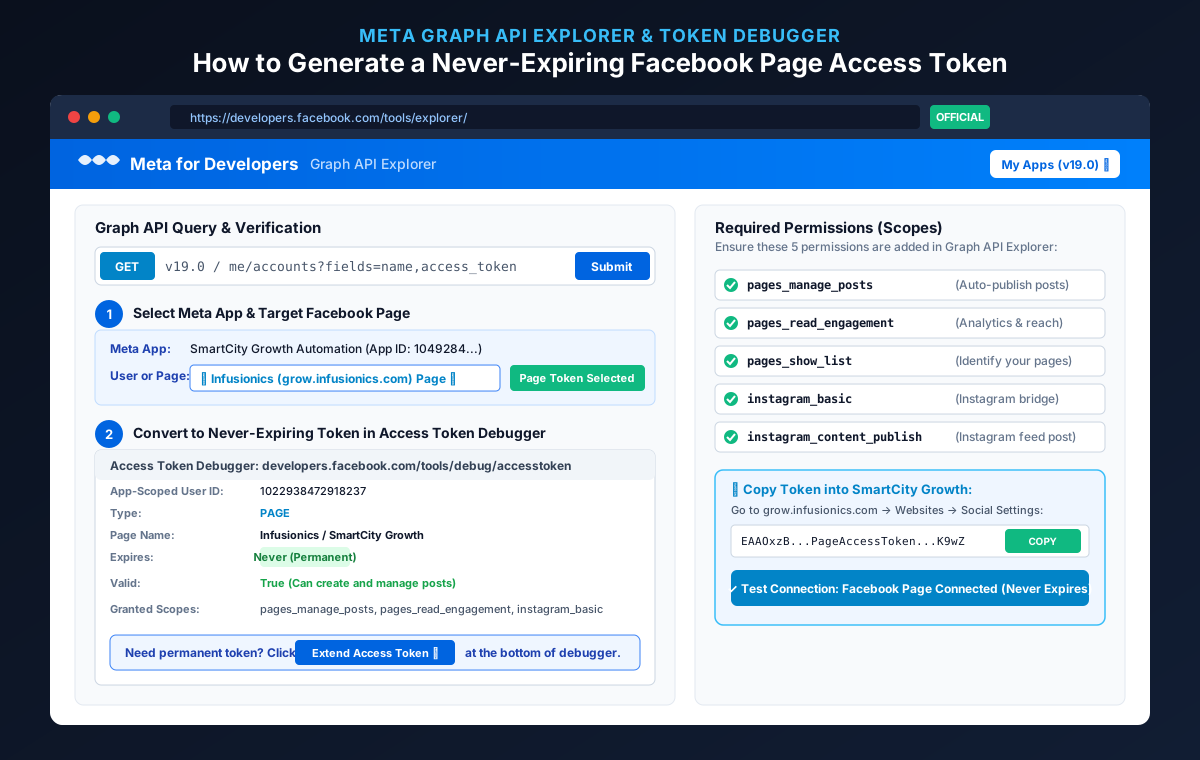
Figure 2: Meta Graph API Explorer interface showing Page selection, required scopes checklist, and Access Token Debugger extension workflow.
Required Permissions (Scopes)
To enable full social auto-pilot, ensure your token contains the following 5 permissions:
| Permission Scope | Purpose in SmartCity Growth |
|---|---|
| pages_manage_posts | Allows automated publishing of status updates, blog previews, and links. |
| pages_read_engagement | Retrieves reach, impressions, and engagement metrics for analytics reporting. |
| pages_show_list | Enables the platform to discover the list of Pages associated with your account. |
| instagram_basic | Connects linked Instagram Professional accounts for automated media publishing. |
| instagram_content_publish | Publishes single photo/carousel posts directly to your Instagram Business feed. |
Step-by-Step Instructions
Step 1: Open the Meta Graph API Explorer
Go to developers.facebook.com/tools/explorer/ and sign in with your Facebook account that has Admin permissions on your target Facebook Page.
Step 2: Select Your Meta App
In the top-right corner, find the Meta App dropdown menu. Select your registered Developer App (e.g. SmartCity Growth Automation or your company app). If you don't have an app yet, click Create App → Select Other → Choose Business.
Step 3: Select Your Facebook Page
In the User or Page dropdown, click the selector. Do not leave it on "User Token". Scroll down to the Page Access Tokens section and click on your target Page (e.g. Infusionics / SmartCity Growth).
Step 4: Add Permissions & Generate Token
- Under Permissions, click the Add a Permission dropdown.
- Add:
pages_manage_posts,pages_read_engagement, andpages_show_list. - Click the blue Generate Access Token button.
- A Facebook authorization popup will appear. Check the box next to your Page and click Save and Got It.
- Copy the string that appears in the Access Token field.
Step 5: Convert to a Never-Expiring Token in the Debugger
To make sure this token does not expire after 1 hour:
- Open a new browser tab and navigate to the Access Token Debugger.
- Paste your copied token into the text field and click Debug.
- Inspect the Expires row. If it says anything other than "Never", scroll down to the bottom of the debugger page.
- Click the blue button labeled Extend Access Token.
- Meta will prompt you for your password and generate a long-lived token.
- Click Debug on the new token. Look at the Type and Expires fields. When generated for a Page, it will now state: Expires: Never.
- Copy this permanent token.
Step 6: Connect into SmartCity Growth
- Log in to your account at grow.infusionics.com.
- Navigate to Websites → Click Edit on your website.
- Scroll to the Social Auto-Pilot Settings section.
- Enter your Facebook Page ID (found in your Page's "About" → "Page Transparency" section or by calling
GET /mein Graph API Explorer). - Paste the permanent Page Access Token into the Facebook Page Access Token field.
- Click the Test Facebook Connection button.
You will see an immediate green confirmation: ✓ Facebook Connected: Post permissions active (Permanent).
Troubleshooting "Token Expired" or "Session Invalidated"
- Changing your personal Facebook password: Meta security invalidates all user-associated tokens if the Facebook account password is changed.
- Admin role removed: If the user who created the token is removed from the Page Admin list.
- App Deauthorization: If someone manually removes the App in Facebook Business Integrations settings.
If any of these occur, simply repeat the 2-minute steps above to generate a fresh permanent token.
Multi-Platform Social Syndication is Active
Once Facebook is connected, SmartCity Growth can automatically cross-publish blog summaries, high-engagement images, and backlink updates directly to your audience.
Go to Dashboard →Accelerate Your Cloud Architecture & Reliability Performance with Enterprise Growth
Stop suffering unexpected service outages, scalability bottlenecks, and slow release cycles. Partner with Enterprise Growth (grow.infusionics.com) to deploy high-throughput cloud architectures, automated CI/CD pipelines, and 99.99% system reliability.
Accelerate Your Business with Custom Web & AI Engineering
Whether you need a high-converting website build, speed optimization, or custom 24/7 AI Chatbot agents, our team delivers production-ready systems tailored to your business.
Request a Free Consultation & Quote →